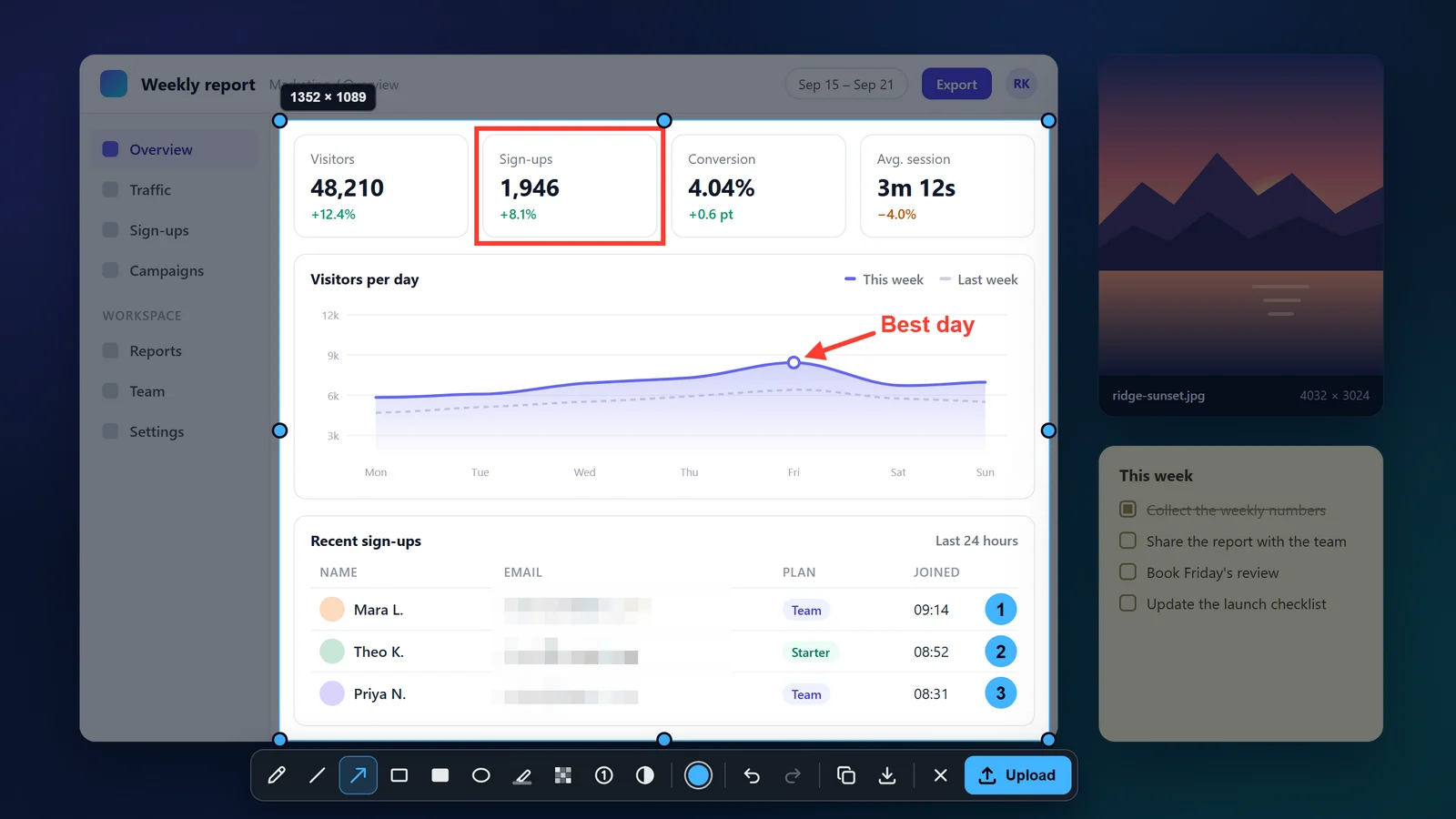
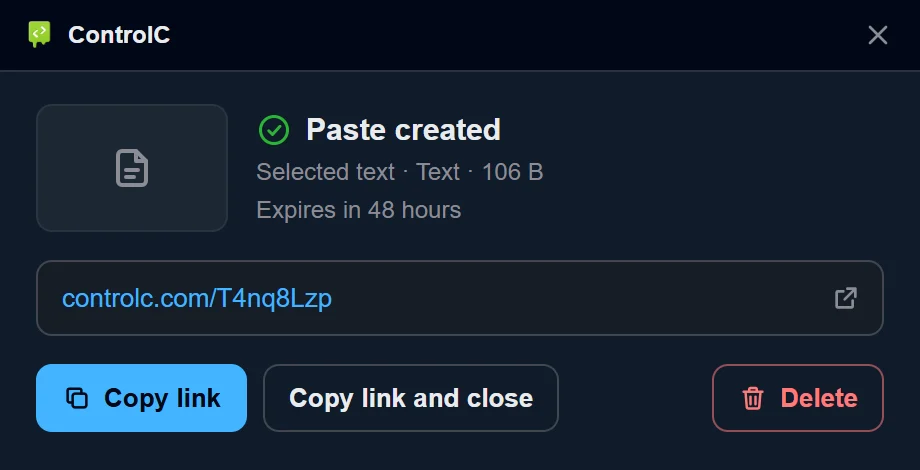
Press one key to freeze the screen, select what you need and annotate it. Press Enter, and a controlc.com link is ready the moment the upload finishes.
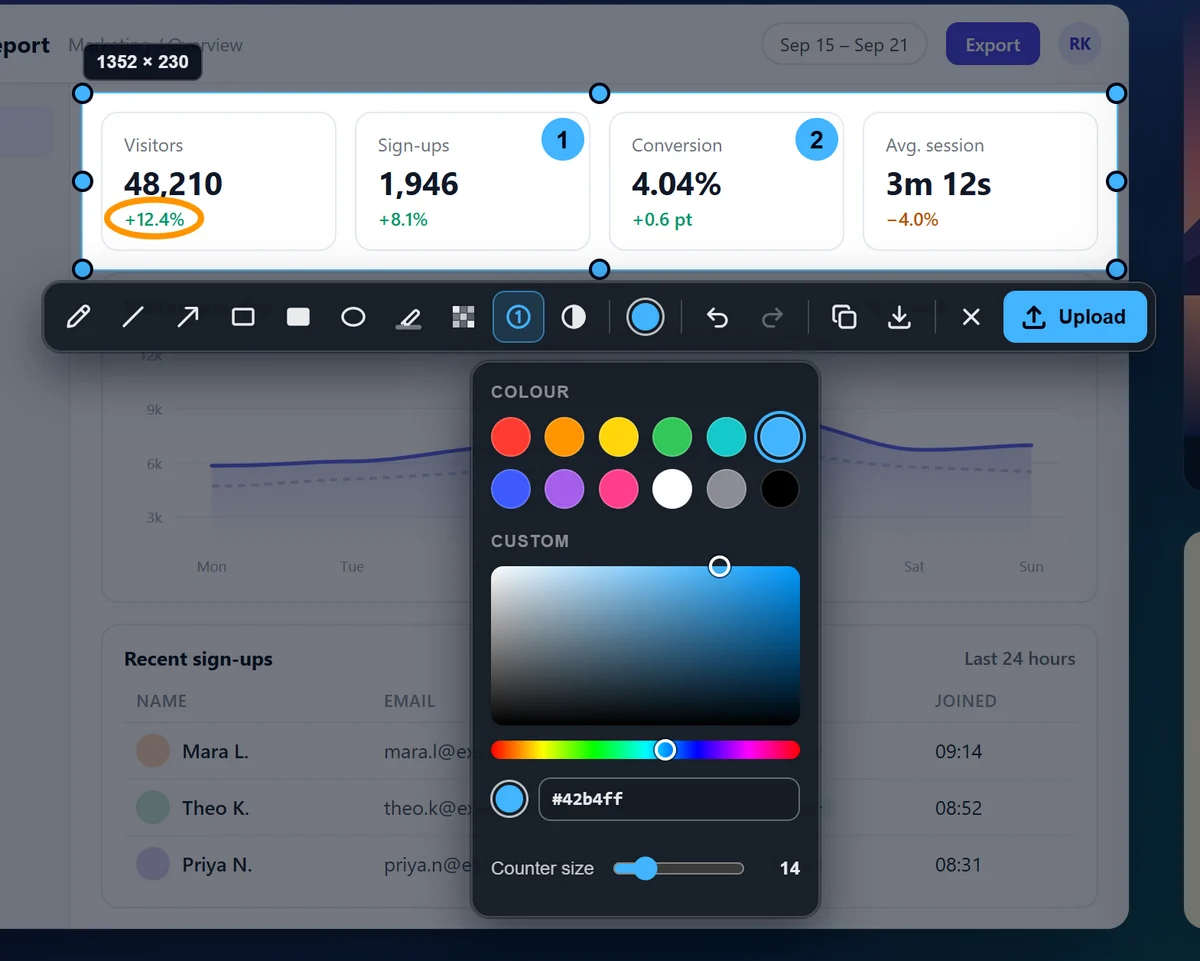
The screen freezes the moment you press the key, so nothing moves while you choose an area. Point things out with arrows, boxes and highlights, number the steps, add text and pixelate anything private.
Arrow
Line
Pencil
Rectangle
Filled rectangle
Ellipse
Marker
Text
Numbered markers
Pixelate
Invert
Colour and size
Undo and redo
Enter uploads
CtrlC copies
CtrlS saves a PNG
The screenshot key is Pause/Break on Windows and ⌘ Shift 2 on a Mac, where ⌘ also replaces Ctrl. You can change it.
A link as soon as the upload finishes
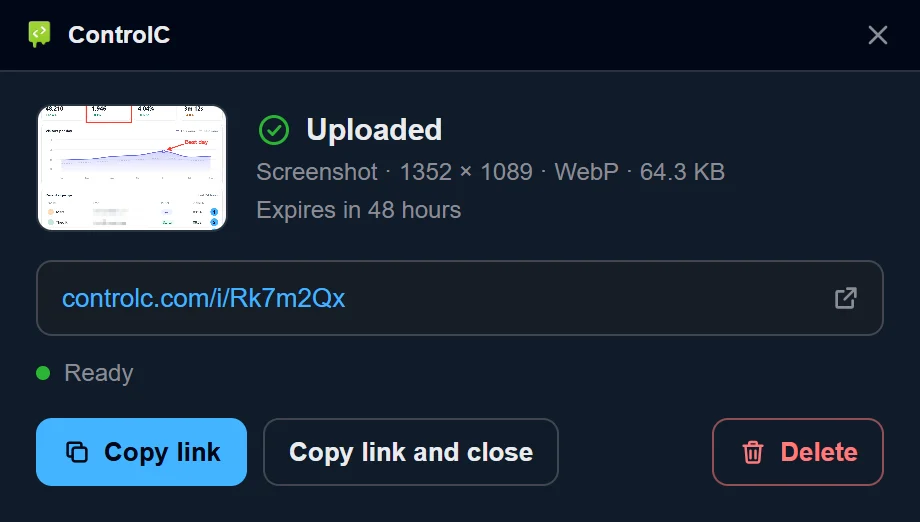
Press Enter and the upload starts. The link appears the moment it's done, ready to copy or open, while the server finishes processing the file in the background. Changed your mind? Delete it from the same window.
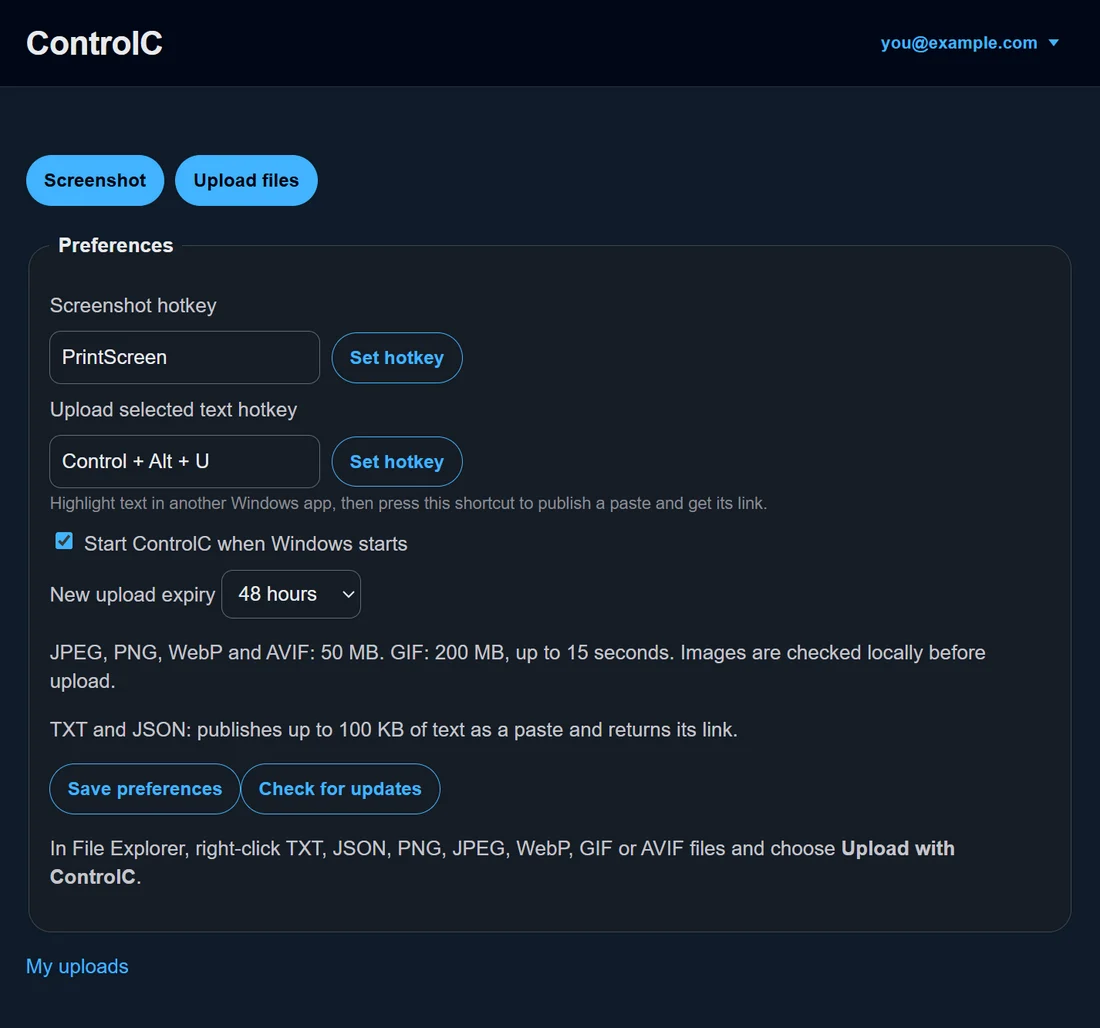
Uploads expire after the time you choose, from 5 minutes to 48 hours.
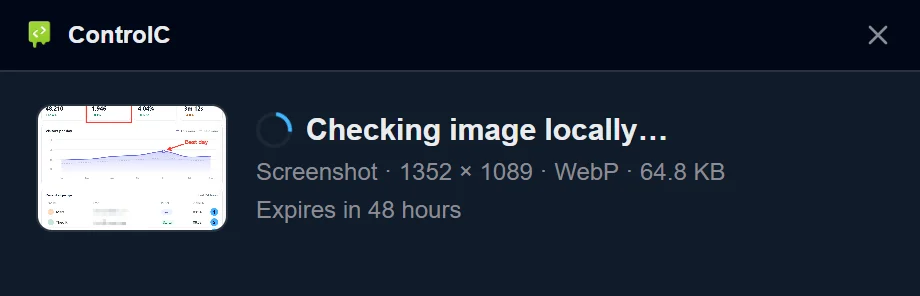
Checked on your computer first
Before anything is sent, ControlC removes the image's metadata, such as camera details and location, as well as other sensitive information that other media hosts may not remove.
Upload from File Explorer or Finder
Right-click images, GIFs, TXT or JSON files in File Explorer and choose Upload with ControlC. On a Mac, turn on the Finder action once, then find it under Quick Actions when you right-click images and GIFs.
Images and GIFs get a media link. TXT and JSON files become pastes. You can also choose files with Upload files.
Publish highlighted text as a paste
On Windows, highlight text in another app and press CtrlAltU. ControlC publishes up to 100 KB of it as a paste and gives you the link.
Connect with a code
Link the app to your account by typing the code it shows into controlc.com. Disconnect it any time from your account page.
Ready when you are
ControlC can start when you sign in to Windows or log in to your Mac, and waits in the background for your hotkey.
Your own shortcuts
Set the screenshot and selected-text hotkeys to any key or combination that suits you.
ControlC Desktop 1.2.3
Choose the download for your computer.
i
This build isn't code-signed yet, so Windows SmartScreen may warn before opening it. Compare the SHA-256 below with your download if you want to confirm it's intact.
Platform
Size
SHA-256
Windows (Microsoft Store) Windows 11, or Windows 10 version 2004 or later; 64-bit
Installed and kept up to date by the Microsoft Store
After installing, open ControlC and choose Connect account. It opens a page on this site where you type the code shown in the app. You can see and disconnect your devices on your account page.